

win8用户如何获得最高权限

win8用户怎么获得最高权限
第一招
我们回到经典桌面,右击计算机---管理---本地用户和组---用户,这时候我们就能看见Administrator的身影了,然后右击Administrator属性,把账户已禁用的勾去掉就行了。

win8用户怎么获得最高权限
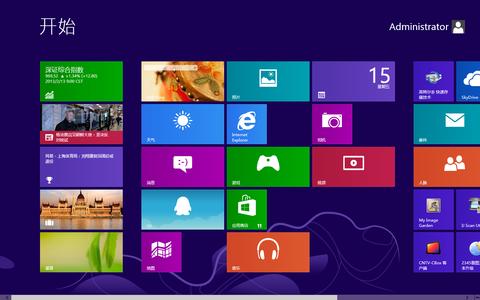
这时候我们组合键CRTL+ALT+DEL,选择切换用户使用Administrator账户登录就行了。

win8用户怎么获得最高权限
第二招
导入注册表,新建一个记事本,把下面的代码复制进去,然后把文件后缀名改为.reg,双击运行即可。
取得管理员权限
Windows Registry Editor Version 5.00
;取得文件修改权限
[HKEY_CLASSES_ROOT*shellrunas]
@="管理员权限"
"Icon"="C:\Windows\System32\imageres.dll,102"
"NoWorkingDirectory"=""
[HKEY_CLASSES_ROOT*shellrunascommand]
@="cmd.exe /c takeown /f "%1" && icacls "%1" /grant administrators:F"
"IsolatedCommand"="cmd.exe /c takeown /f "%1" && icacls "%1" /grant administrators:F"
[HKEY_CLASSES_ROOTexefileshellrunas2]
@="管理员权限"
"Icon"="C:\Windows\System32\imageres.dll,102"
"NoWorkingDirectory"=""
[HKEY_CLASSES_ROOTexefileshellrunas2command]
@="cmd.exe /c takeown /f "%1" && icacls "%1" /grant administrators:F"
"IsolatedCommand"="cmd.exe /c takeown /f "%1" && icacls "%1" /grant administrators:F"
[HKEY_CLASSES_ROOTDirectoryshellrunas]
@="管理员权限"
"Icon"="C:\Windows\System32\imageres.dll,102"
"NoWorkingDirectory"=""
[HKEY_CLASSES_ROOTDirectoryshellrunascommand]
@="cmd.exe /c takeown /f "%1" /r /d y && icacls "%1" /grant administrators:F /t"
"IsolatedCommand"="cmd.exe /c takeown /f "%1" /r /d y && icacls "%1" /grant administrators:F /t"
2、恢复原始权限:
Windows Registry Editor Version 5.00
;恢复原始权限
[HKEY_CLASSES_ROOT*shellrunas-]
@="恢复原始权限"
"Icon"="C:\Windows\System32\imageres.dll,101"
"NoWorkingDirectory"=""
; && takeown /f "%1"
[HKEY_CLASSES_ROOT*shellrunas-command]
@="cmd.exe /c takeown /f "%1" && icacls "%1" /reset && cacls "%1" /e /r "%%USERNAME%%""
"IsolatedCommand"="cmd.exe /c takeown /f "%1" && icacls "%1" /reset && cacls "%1" /e /r "%%USERNAME%%""
[HKEY_CLASSES_ROOTexefileshellrunas2-]
@="恢复原始权限"
"Icon"="C:\Windows\System32\imageres.dll,101"
"NoWorkingDirectory"=""
[HKEY_CLASSES_ROOTexefileshellrunas2-command]
@="cmd.exe /c takeown /f "%1" && icacls "%1" /reset && cacls "%1" /e /r "%%USERNAME%%""
"IsolatedCommand"="cmd.exe /c takeown /f "%1" && icacls "%1" /reset && cacls "%1" /e /r "%%USERNAME%%""
[HKEY_CLASSES_ROOTDirectoryshellrunas-]
@="恢复原始权限"
"Icon"="C:\Windows\System32\imageres.dll,101"
"NoWorkingDirectory"=""
[HKEY_CLASSES_ROOTDirectoryshellrunas-command]
@="cmd.exe /c takeown /f "%1" /r /d y && icacls "%1" /reset && cacls "%1" /e /r "%%USERNAME%%""
"IsolatedCommand"="cmd.exe /c takeown /f "%1" /r /d y && icacls "%1" /reset && cacls "%1" /e /r "%%USERNAME%%""
在双击运行这两个文件后,会自动把我们需要的功能注入到注册表里,然后右键菜单就会出现一个管理员权限和一个恢复原始权限的选项,想对什么文件执行操作,想必就不用小编在这里多嘴了吧。
版权声明
本文仅代表作者观点,不代表本站立场。
本文系作者授权发表,未经许可,不得转载。
本文地址:/jtjc/win10/143499.html